
Description
Purgify – Clear Cache, Transients & Database gives you one place to clear every cache on your site, clear WordPress transients, and purge leftover database rows (temporary settings, plugin caches, test data) without opening phpMyAdmin.
It has three tools:
- Cache clear detects the cache layers on your site (page cache plugins, object cache, hosting cache, optimized CSS/JS, your browser) and clears them all with one click, or one at a time.
- Transient purge clears all transients or only expired ones, then lists every key it deleted.
- Database purge finds rows in any of your site’s tables whose key contains your search terms, shows them like phpMyAdmin, and lets you delete them one at a time or all at once. It’s ideal for resetting a plugin’s temporary settings or caches while you test a feature again and again.
Features
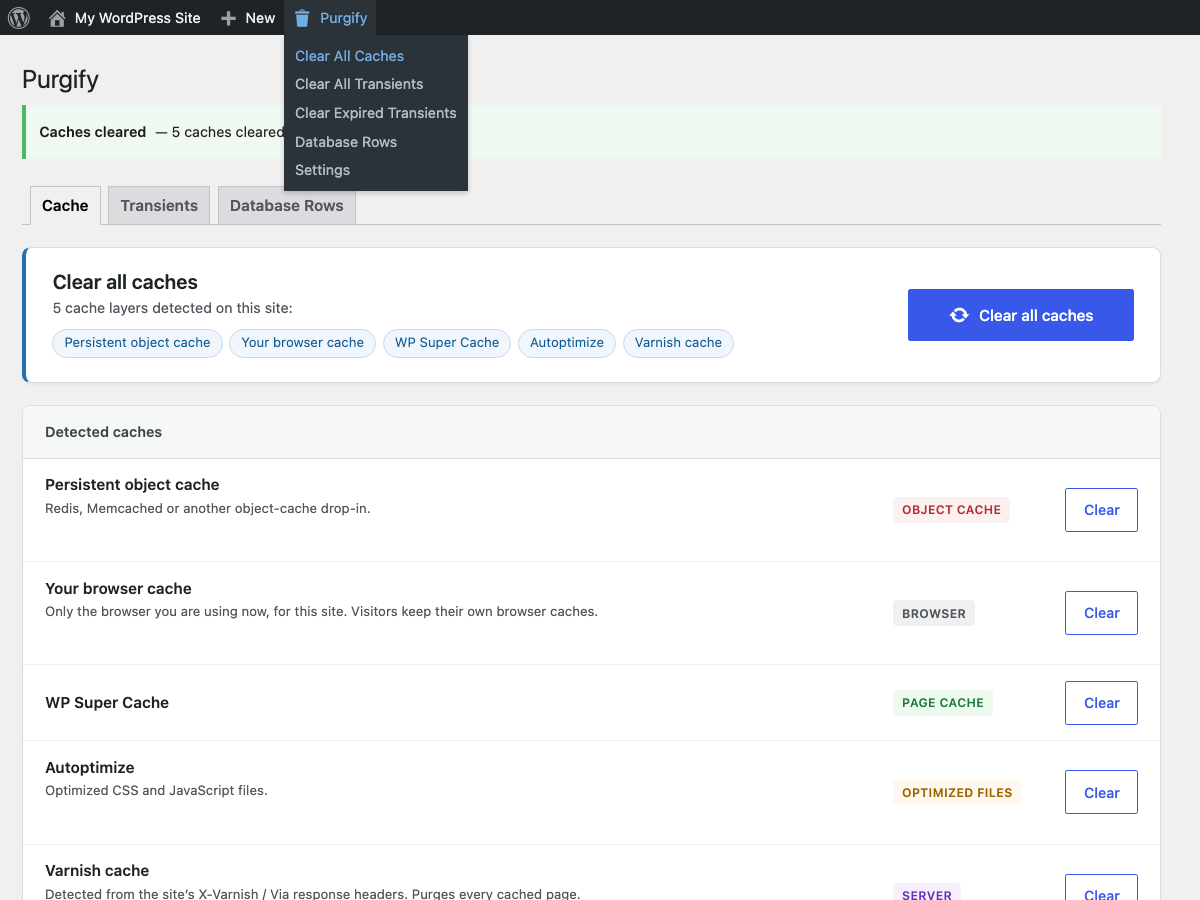
- Admin Toolbar menu — clear all caches, clear transients or open the database purge from any admin screen or front-end (if logged in as admin) with one click.
- Tools page (
Tools → Purgify) — tabs for Cache (the default), Transients and Database Rows, with built-in guidance. - Cache clear (
Tools → Purgify → Cache) — shows every cache layer detected on your site with one “Clear all caches” button and a Clear button per layer. Purgify calls each plugin’s own clear function, so nothing is deleted behind the plugin’s back. Supported:- Page cache plugins: WP Super Cache, W3 Total Cache, WP Rocket, LiteSpeed Cache, WP Fastest Cache, Cache Enabler, Breeze, WP-Optimize, Hummingbird, Comet Cache, Swift Performance, FlyingPress.
- Hosting, CDN and server caches: Varnish (detected automatically from the response headers), SiteGround Speed Optimizer, WP Engine, Pantheon, Cloudflare, Proxy Cache Purge (Varnish), Nginx Helper, PHP OPcache.
- Object cache: Redis, Memcached or any persistent object-cache drop-in.
- Optimized files: Autoptimize, Elementor generated CSS.
- Your own browser’s cache for the site (via the
Clear-Site-Dataheader). - Developers can add more with the
purgify_cache_providersfilter.
- Transient purge (
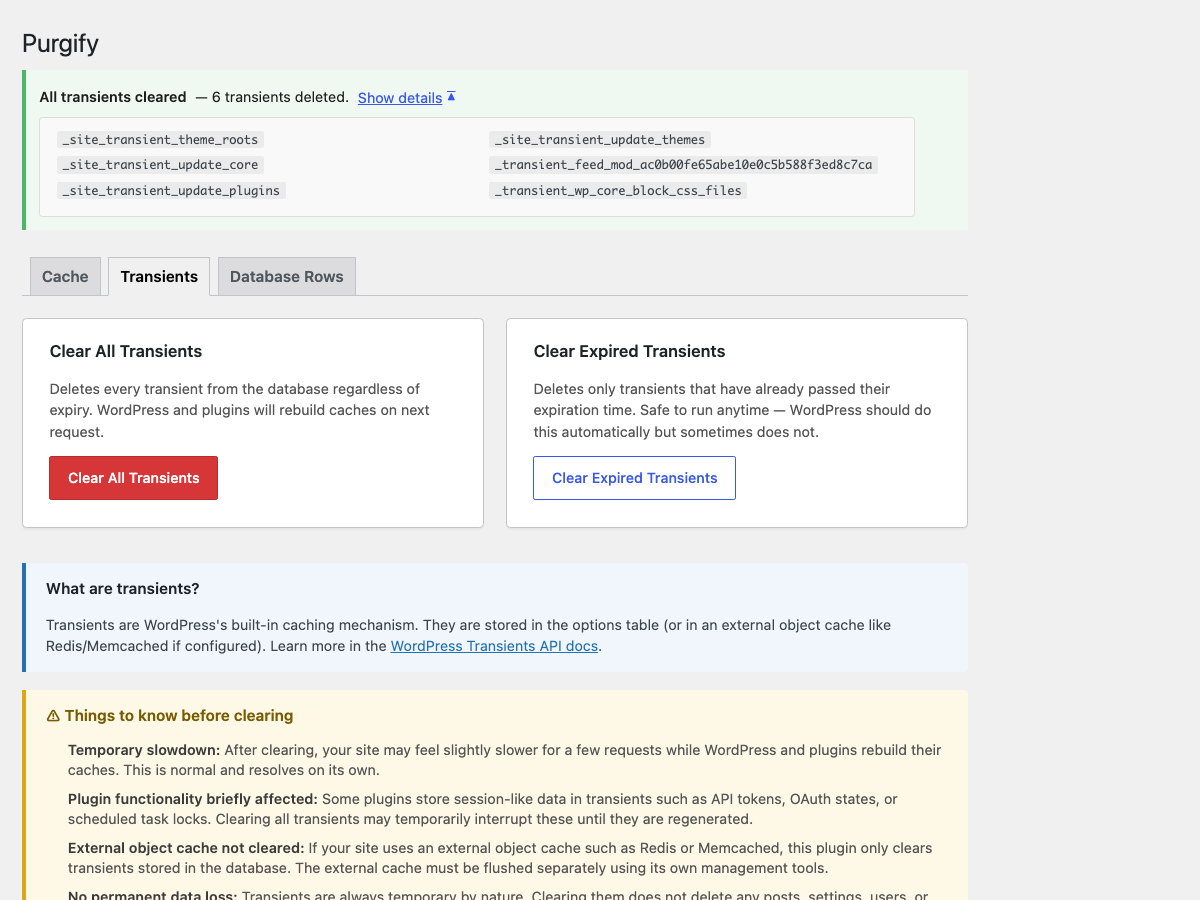
Tools → Purgify → Transients) — after clearing, an admin notice tells you exactly how many transients were deleted, with an expandable list of every key that was removed. Two clear modes:- Clear All — removes every transient regardless of expiry.
- Clear Expired — removes only transients whose expiry time has passed (safe, routine cleanup).
- Database purge (
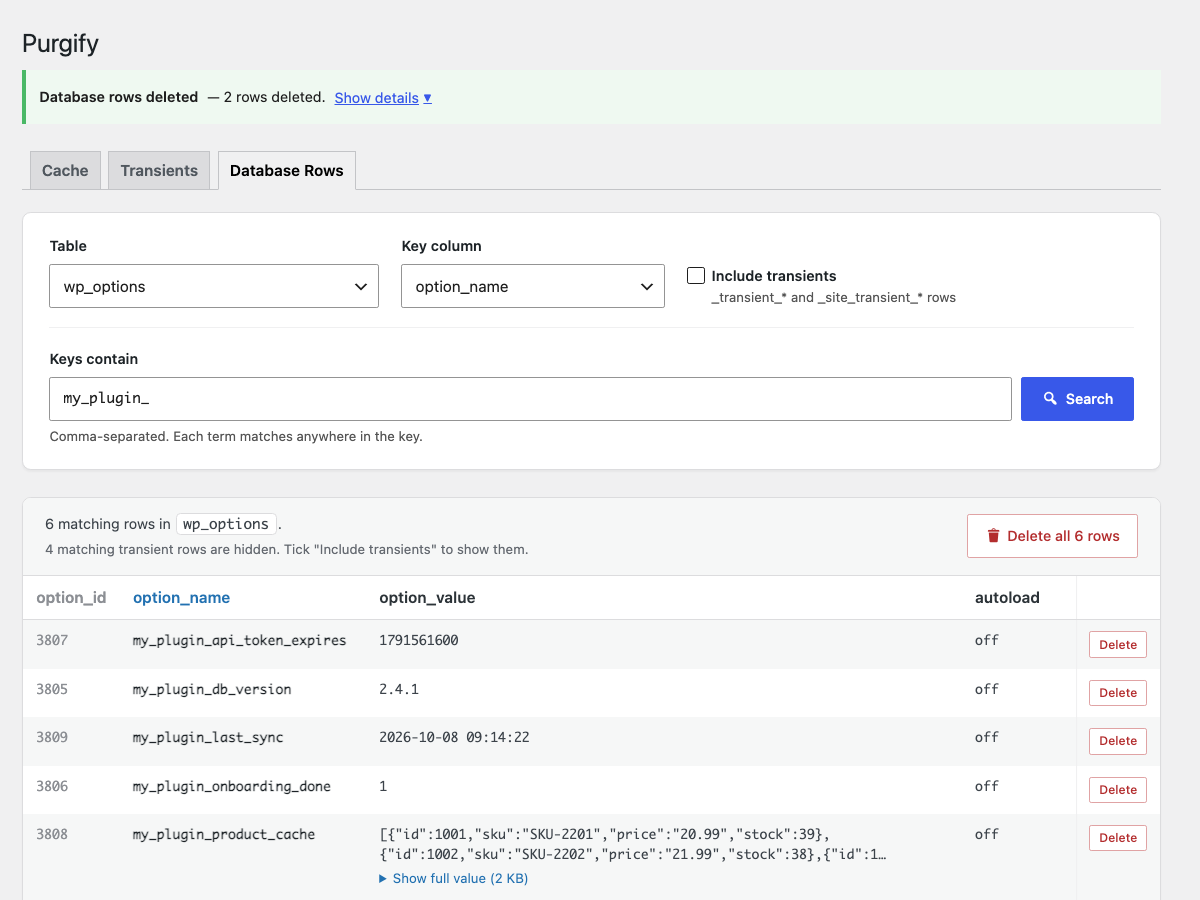
Tools → Purgify → Database Rows) — pick a table (defaults to the options table), enter comma-separated key fragments, and see every matching row with all its columns. Delete rows one at a time or all shown rows at once.- Searches match anywhere in the key (
LIKE %term%) and show at most 100 rows. Deletes are limited to the rows shown, so there is no way to empty a table. - Transient rows are left out of searches unless you tick “Include transients”, and the results say how many were hidden.
- Only this site’s tables (with the WordPress table prefix) are listed.
- Core options that WordPress needs (site URL, active plugins, theme, user roles and similar) are protected and cannot be deleted.
- Object caches are cleared for deleted options and post, user, term and comment meta, so WordPress stops using the old values straight away.
- Your last search is remembered, so a repeat test cycle is one click from the toolbar.
- Searches match anywhere in the key (
- Nonce-protected actions — all actions are protected against CSRF, and every delete asks for confirmation.
- Translations ready — ships with translations for Spanish, French, German, Portuguese (Brazil), and Italian.
- Lightweight — no external dependencies, no database tables, no settings. The only saved data is each user’s last Database Rows search and a few short-lived transients, all removed on uninstall.
When should I clear transients?
- After updating plugins or themes whose caches are stale.
- When debugging unexpected cached content.
- As routine maintenance to keep the options table clean (use Clear Expired).
- After migrating or restoring a database.
When should I clear caches?
- After changing a theme, plugin settings or CSS, when visitors still see the old version.
- After deploying code changes (also clears PHP OPcache).
- When an optimization plugin serves stale combined CSS or JavaScript.
When should I purge database rows?
- To reset a plugin’s saved settings, onboarding flags or caches so you can test its first-run behaviour again.
- To remove leftover options or meta from plugins you have already deleted.
- To clear a stuck flag or lock that a plugin stored in the options table.
Privacy
This plugin does not collect, store, or transmit any personal data, and it does not contact any third-party service.
To detect and clear a Varnish cache, Purgify sends HTTP requests only to your own site: one request to your homepage (repeated at most every 12 hours) to read its cache headers, and a PURGE request when you clear the cache. When you clear caches, the cache plugins you have installed (for example Cloudflare) may contact their own services, exactly as they do when you use their own clear buttons.
Screenshots
Installation
- Upload the
purgifyfolder to/wp-content/plugins/. - Activate the plugin through Plugins Installed Plugins.
- Use the Purgify menu in the admin toolbar from any screen, or go to Tools Purgify.
FAQ
-
Will clearing transients break my site?
-
No. Transients are cache entries — clearing them causes WordPress and plugins to regenerate fresh data on the next request. Your site may be slightly slower for the first few requests after clearing.
-
What is the difference between “Clear All” and “Clear Expired”?
-
Clear All removes every transient unconditionally. Use it when you need a completely fresh cache.
Clear Expired removes only transients whose timeout has already passed. This is the safer, more routine option — it just does what WordPress’s own garbage collection is supposed to do automatically.
-
Does this work with object cache (Redis / Memcached)?
-
If you have an external object cache (e.g. Redis via the Redis Object Cache plugin), transients are stored there instead of the database. This plugin clears the database rows, which is the fallback store. To clear an external object cache, use that cache’s own management tools or flush it from its plugin’s settings.
-
Is it multisite compatible?
-
The plugin clears both regular (
_transient_*) and site-wide (_site_transient_*) transients from the current site’s options table. Full multisite network support is planned for a future release. -
Which caches can it clear?
-
Purgify detects active cache plugins and hosting caches and shows only the ones it found. The Cache tab lists them, plus a collapsed list of everything else it supports. Clearing a cache is always safe: the cache plugin rebuilds pages and files on the next visit.
-
Can it clear my visitors’ browser caches?
-
No website can do that. Purgify can clear your own browser’s cache for the site: it sends the standard
Clear-Site-Dataheader on your next page load (supported by Chrome, Edge and Firefox). Visitors’ browsers follow the cache headers your site sends. -
Is the database purge safe?
-
It’s built for deleting a few rows at a time, not for bulk changes. Searches show at most 100 rows, and only those rows can be deleted. Every delete asks for confirmation, and essential core options are protected. Deleted rows cannot be restored, so take a database backup before deleting anything you are unsure about. Only administrators (
manage_options) can use it. -
Which column does Database Rows search?
-
For the options table it searches
option_name, and for meta tablesmeta_key. For other tables it picks the first text column. You can choose any column from the “Key column” dropdown. -
Can I use this on the front-end?
-
The admin toolbar links are visible on the front-end when you are logged in as an administrator (provided the toolbar is enabled for your user). They work exactly the same way.
Reviews

Contributors & Developers
“Purgify – Clear Cache, Transients & Database” is open source software. The following people have contributed to this plugin.
Contributors
Translate “Purgify – Clear Cache, Transients & Database” into your language.
Interested in development?
Browse the code, check out the SVN repository, or subscribe to the development log by RSS.
Changelog
1.1.0
- New: Cache clear (
Tools → Purgify → Cache, and “Clear All Caches” in the admin toolbar). Detects and clears 24 cache layers, including WP Super Cache, W3 Total Cache, WP Rocket, LiteSpeed Cache, WP Fastest Cache, Cache Enabler, Breeze, WP-Optimize, Hummingbird, Swift Performance, FlyingPress, SiteGround, Varnish, WP Engine, Pantheon, Cloudflare, Proxy Cache Purge, Nginx Helper, Autoptimize, Elementor CSS, persistent object caches, PHP OPcache and your browser cache. Clear them all at once or one at a time. - New: Database purge (
Tools → Purgify → Database Rows). Search any of the site’s tables by comma-separated key fragments, review the matching rows with all their columns, and delete them one at a time or all shown rows at once (up to 100 per search). - New: “Include transients” option for database searches. Transient rows are hidden by default, and the results say how many were left out.
- New: Essential core options (site URL, home, active plugins, theme, user roles, database version) are protected from deletion.
- New: Object caches are cleared for deleted options and post, user, term and comment meta, so old values are not served from cache.
- New: “Database Rows” link in the admin toolbar menu, which opens your last search.
- Changed: Plugin renamed to “Purgify – Clear Cache, Transients & Database”. The Tools page now opens on the Cache tab.
- Improved: Translations updated for Spanish, French, German, Portuguese (Brazil) and Italian, including strings that were previously untranslated.
- Improved: Admin CSS and JS are versioned by file time, so browsers never keep stale styles after an update.
- Fixed: The “Show details” arrow in the result notice now points up when the list is expanded.
- Tested up to WordPress 7.1.
1.0.1
- Fixed: Plugin name header special character causing incorrect activation status in Add Plugins screen.
- Improved: Toolbar actions now redirect back to the originating page instead of always going to settings.
- Improved: Added icon and banner assets.
1.0.0
- Initial release.